
Agency Growth
Nov, 2026
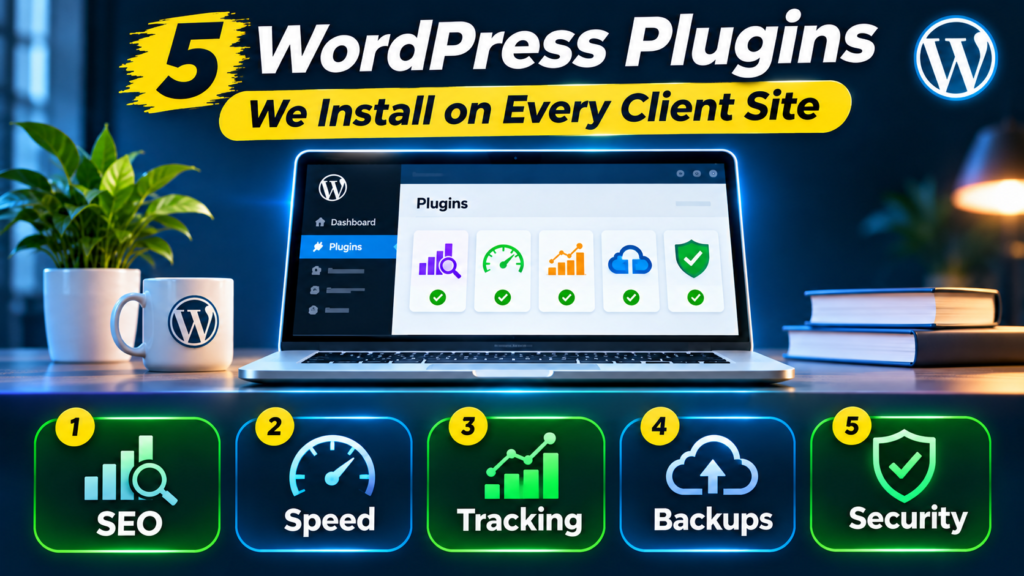
Every client site we build starts the same way. Before we add the design, the pages, or the content, we install five plugins. The same five, every time. Not twenty. Five. That number matters. A site with twenty plugins for a simple business site will be slow and hard to maintain. We keep it lean, and we install only what the site really uses. These five earn their place, because each one does a job the site cannot do without. Here they are — and why each one is on the list. If you are looking for the best WordPress plugins for a client site, start with this short list.
1. SEO — Rank Math
A site can look perfect and still be invisible on Google. That is why the first plugin is for SEO. Rank Math handles the basics we need on every site: the SEO title and meta description for each page and post, the sitemap, and the settings that tell Google which pages to index and which to leave out. We use it on shahidali.me itself, for the same reason. It is simple to check, and it keeps the SEO settings in one place instead of scattered across the site.
One practical step: after you install it, set the title and meta for the homepage first. That is the page Google sees most, and it is the page most people get wrong.
2. Caching and speed — WP Rocket
Speed is not a nice extra. A slow site loses visitors, and the client will blame the build, not the hosting. WP Rocket turns on page caching, so the site does not have to build every page from scratch for every visitor. That one change is often the biggest speed win on a new site. We use it on shahidali.me too — clearing and preloading the cache is part of how we check a site after we make changes.
One practical step: turn on page caching, then clear the cache once after you make changes, and check the site as a visitor would see it. If your host already handles caching, ask them what is turned on, so you are not guessing — and so you do not run two caching systems at once.
3. Code snippets and tracking — WPCode
Every site needs a few small pieces of code: tracking, a verification tag, or a small change that does not belong in the theme. Editing theme files for that is a bad idea — the next theme update wipes it out. WPCode holds those snippets safely, in one place, where you can turn each one on or off. On shahidali.me, our Google Tag Manager container runs through WPCode, site-wide, in the header and body.
One practical step: keep a short note for each snippet — what it does, and why it is there. Six months later, nobody remembers, and a snippet with no note is the first thing that gets deleted by mistake.
4. Backups — UpdraftPlus
A site without a backup is one bad update away from a very bad day. UpdraftPlus takes regular backups and stores them away from the site itself — not in the same hosting account that would go down with it. If an update breaks something, or a file gets damaged, we can put the site back in minutes instead of rebuilding it.
One practical step: test the restore at least once, on a staging copy, before you need it for real. A backup you have never restored is a hope, not a plan. And agree with the client, in writing, who takes the backups and who restores the site if it goes down.
5. Security — Wordfence Security
WordPress sites get attacked. Not because the site is important, but because the attacks are automatic — they try every site they can find. Wordfence watches logins, blocks the obvious bad traffic, and tells us when a file changes that should not have changed. It does not make a site unhackable. Nothing does. But it turns a site from an easy target into a hard one, and most attacks move on to an easier target.
One practical step: turn on login protection and file-change alerts first, and keep WordPress, the theme, and the plugins up to date. Most hacked sites we have seen were not hacked through a clever trick — they were hacked through an old plugin nobody updated.
The rule behind the list
Five plugins, five jobs: SEO, speed, tracking, backups, and security. If a sixth plugin wants a place on the list, it has to answer one question: what does this do for us now? If no one can answer, we do not install it. We deactivate it, test the site, and then delete it. Fewer plugins also means fewer things to update, and fewer security risks. That is the whole point. A lean site is faster, safer, and easier to hand over — and a clean handover is what the client remembers. For the full handover checklist we use before a site goes to the client, see our WordPress Website Handover Checklist. And if a site is already slow, start with our 9 speed fixes — image optimisation, caching, and plugin cleanup usually give the biggest change. These are the best WordPress plugins for a lean client site because each one earns its place.
FAQs
Do I need all five plugins on a small site?
Yes, if the site is for a real client. SEO, speed, tracking, backups, and security are not extras — they are the base. A small site needs them just as much as a big one.
Is five the right number for every site?
Five is our starting point, not a limit. A WooCommerce shop or a site with forms will need more, for the shop or the forms. But those are added for a clear reason, one at a time — not installed just in case.
Can too many plugins slow a site down?
Yes. Every active plugin adds work, and some load their own files on every page, even on pages where they are not used. That is why we keep the list short, and remove what the site does not use.
What should I do first if I already have twenty plugins?
Go through the list and ask one question for each plugin: what does this do for us now? Deactivate the ones with no answer, test the site, then delete them. Start with the ones nobody remembers installing.
Conclusion
Plugins are tools, not a collection. The best list is a short one, where every plugin has a job, and someone knows why it is there. Install these five, keep them updated, and test the backup before you need it. Then spend your time on the site itself — the design, the content, and the client. And tell us in the comments: which plugin is on your must-install list — and which one did you remove and never miss? For Gutenberg and custom block context, see the WordPress developer handbook. That is why these five are, for us, the best WordPress plugins to start every client site with.
Ideas For Your Next Build
Explore guides, technical tips and fresh perspectives for your WordPress projects.
WordPress How-To
Nov, 2026
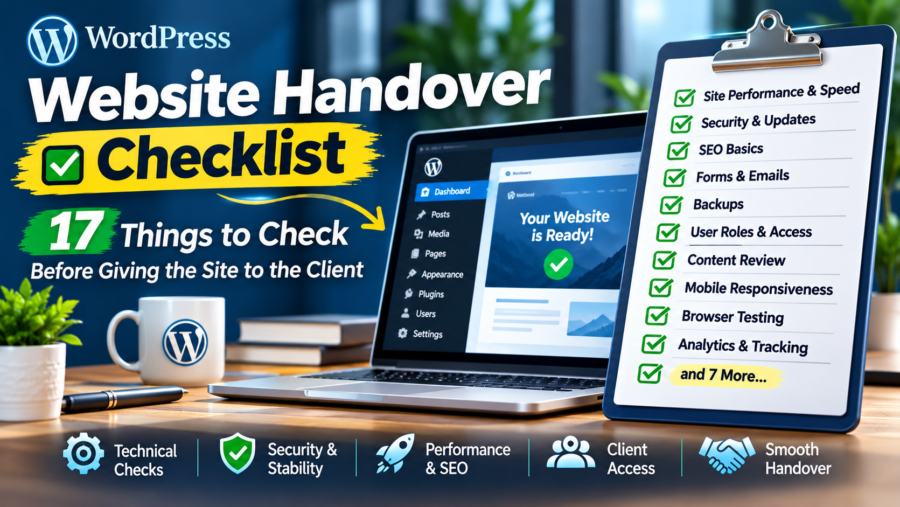
WordPress Website Handover Checklist: 17 Things to Check Before Giving the Site to the Client
LET'S GROW TOGETHER
Ready to deliver more without building a bigger in-house team?
Whether you need support for one project or an ongoing delivery partner, let’s discuss how our team can work quietly behind your agency.