
White-Label
Nov, 2026
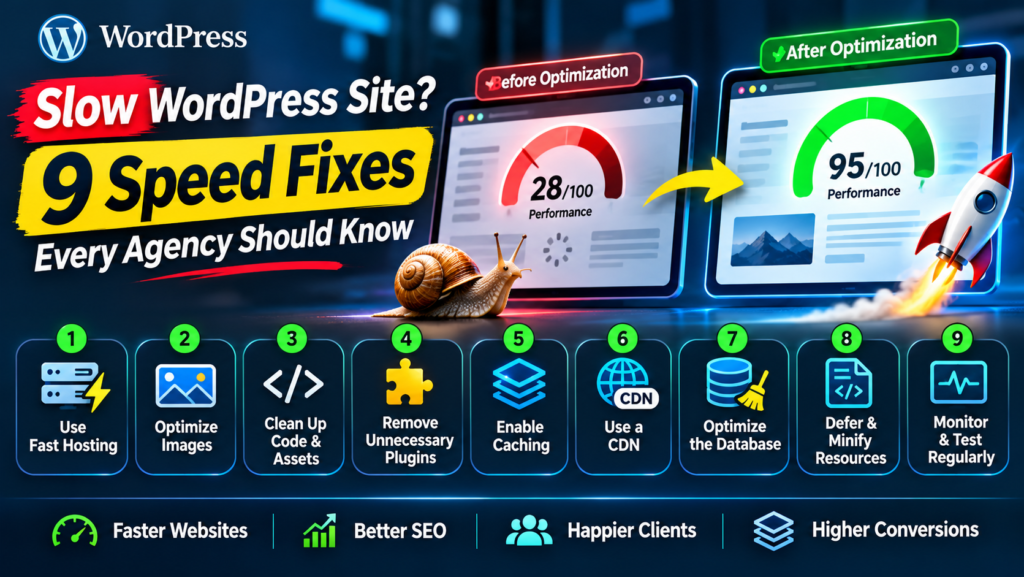
A client calls you on a Monday morning. Their website feels slow. Visitors leave before the page even loads properly. The client is not happy, and the blame comes to you — even if you did not build the site.
This happens to agencies all the time. A slow site does not just annoy people. It hurts trust. A visitor who waits too long will go to the next result on Google, or to a competitor. And the client will start to think something is wrong with their business, not just their website.
The good news is that most slow WordPress sites are slow for the same few reasons. You do not need a full rebuild to fix them. You need to check the basics first, one by one.
Here are 9 WordPress speed optimization fixes every agency should know. They work on most client sites, and you can start with the first three today.
1. Optimise Images Before You Upload Them
This is the most common problem. A client sends a photo straight from a camera or a phone, and it goes on the website as it is. That one image can be heavier than the whole rest of the page.
Why it matters: Images are usually the heaviest part of a page. If they are too large, the browser has to download all of that weight before the page looks ready.
One practical step: Before you upload an image, resize it to the size it will actually show on the page, and save it as WebP. A hero image does not need to be wider than the screen. A small image inside the text does not need to be full size either. Make this a rule for your team: no image goes live without being resized first.
2. Turn On Caching for WordPress Speed Optimization
Caching sounds technical, but the idea is simple. Without caching, WordPress builds every page from scratch each time someone visits. With caching, it saves a ready-made copy of the page and shows that copy instead. That is much faster.
Why it matters: A cached page loads quickly because the server does less work. On a busy client site, that difference is easy to feel.
One practical step: Use a good caching plugin and turn on page caching. Then clear the cache once after you make changes, and check the site as a visitor would see it. If you use a host that already handles caching for you, ask them what is turned on and what is not, so you are not guessing.
3. Remove Plugins You Do Not Need
Most WordPress sites collect plugins over time. Someone adds one for a small job, then forgets about it. A year later, the site has twenty plugins, and half of them do nothing useful anymore.
Why it matters: Every active plugin adds work. Some load their own files on every page, even on pages where they are not used. A few heavy plugins can slow down the whole site.
One practical step: Go through the plugin list with the client and ask one question for each plugin: what does this do for us now? If no one can answer, deactivate it, test the site, and then delete it. Keep only what the site really uses. Fewer plugins also means fewer things to update and fewer security risks.
4. Check If the Page Builder Is Doing Too Much
Page builders like Elementor are useful, but they can make a page heavy. Too many sections, nested columns, animations and widgets on one page all add weight. Sometimes a simple page ends up with a lot of extra code behind it.
Why it matters: The visitor only sees the final page, but the browser has to load everything behind it too. A page that looks simple can still be slow if it is built with too many layers.
One practical step: Open the slowest page and look at how it is built. Remove sections that add nothing, turn off animations the client does not need, and avoid stacking widgets inside widgets. If a section can be built with plain blocks instead of a heavy widget, use the simpler option. For a wider look at how we handle builds for agencies, see our White-Label WordPress Development: A Complete Guide for Agencies.
5. Fix Your Fonts
Fonts seem small, but they can slow a site down. Many sites load several font families, each in several weights, from an outside source. The browser waits for those fonts before it shows the text properly.
Why it matters: If fonts load slowly, the text appears late, or it jumps around as the page loads. That feels slow to the visitor, even if the rest of the page is ready.
One practical step: Use no more than two font families on a client site, and only the weights you actually use. If you can, host the fonts on your own server instead of loading them from outside every time. And set a simple fallback font, so the text shows straight away even while the main font is still loading.
6. Use a CDN
A CDN, or content delivery network, keeps copies of your site’s files on servers in different places. When someone visits the site, they get the files from the server closest to them, instead of from one server far away.
Why it matters: For a client with visitors in different cities or countries, this makes a real difference. Images, styles and scripts travel a shorter distance, so they arrive sooner.
One practical step: Set up a CDN for the site’s static files — images, CSS and JavaScript. Most CDN setups take less than an hour. After you turn it on, clear the cache and check the site from a normal browser to make sure the images and styles still load correctly.
7. Clean Up the Database
WordPress saves a lot of extra data over time. Old post revisions, spam comments, trashed posts and leftover data from deleted plugins all sit in the database. The site still works, but the database gets bigger and slower to search.
Why it matters: Every time WordPress loads a page, it talks to the database. A messy database means more work for every single visit.
One practical step: Once a month, clean up old revisions, spam comments and trash. Limit how many revisions WordPress keeps for each post. And always take a backup before you clean anything, so you can restore the site if something goes wrong. This is part of the regular care we include in our monthly support, which starts from $1,500/mo.
8. Check the Hosting
Sometimes the problem is not the site at all. It is the hosting. A cheap shared hosting plan puts many websites on one server. If one of those sites gets busy, yours slows down too. And if the server itself is old or overloaded, no amount of image optimisation will fix it.
Why it matters: Hosting is the base of the site. If the base is weak, every fix you make on top of it will only help a little.
One practical step: Ask the host what plan the client is on, and whether the site has enough memory and processing power for its traffic. If the site has grown, it may need a better plan. Moving to better hosting is a bigger job than the other fixes on this list, so talk it through with the client first — explain what will change, and what will stay the same.
9. Lazy Load Images and Videos
Lazy loading means images and videos below the fold do not load until the visitor scrolls down to them. The top of the page loads first, so the visitor sees something quickly, and the rest loads only when it is needed.
Why it matters: A page with many images or an embedded video can feel very slow at first, even if the visitor only looks at the top. Lazy loading fixes that first impression.
One practical step: Turn on lazy loading for images, and for embedded videos use a light preview image that only loads the video when the visitor clicks play. That one change can make a long page feel much lighter. For more on how WordPress handles performance, see the WordPress developer handbook.
FAQs
Will these fixes work on any WordPress site? Most of them, yes. Image optimisation, caching, plugin cleanup and lazy loading help almost every site. Hosting and page builder fixes depend on how the site was built, so check those one by one.
Do I need to do all 9 fixes at once? No. Start with images, caching and plugins. Those three usually give the biggest change. Then work through the rest in order, and check the site after each fix.
Can speed fixes break a site? They can, if you change things without testing. That is why you should always take a backup first, make one change at a time, and check the site as a visitor after each change.
How often should an agency check site speed? At least once a month for active client sites, and every time you launch a new page or add a new plugin. Speed is not a one-time job — it drifts as the site grows.
Final Thought
A slow WordPress site is rarely broken — and WordPress speed optimization is usually just fixing the basics first. It is usually just overloaded — too many images, too many plugins, too much extra code, or hosting that no longer fits the site. Fix the basics first, and you will see the difference before you spend money on a rebuild. If your agency has client sites that feel slow and you do not have time to go through all nine fixes yourself, we can help. Our team works behind your agency’s brand — you keep the client, we handle the technical work. See what we do on our Services page, or send your project on Discuss a Partnership. And tell me in the comments: which of these 9 fixes do you check first when a client says their site is slow?
Ideas For Your Next Build
Explore guides, technical tips and fresh perspectives for your WordPress projects.

WordPress How-To
Nov, 2026
Figma to WordPress: From Design to Live Site — Our Process
LET'S GROW TOGETHER
Ready to deliver more without building a bigger in-house team?
Whether you need support for one project or an ongoing delivery partner, let’s discuss how our team can work quietly behind your agency.