
PHP
Oct, 2026
A site was finished. It looked good on the laptop, and the client was happy in the meeting. Then the site went live, and the phone started ringing.
The contact form was not sending emails. A page still had dummy text on it. The logo was cut off on a phone. And the client could not log in, because no one had told them where the login page was.
None of these were big problems on their own. But together, they made the agency look careless — and all of them could have been caught in one hour, with a simple checklist.
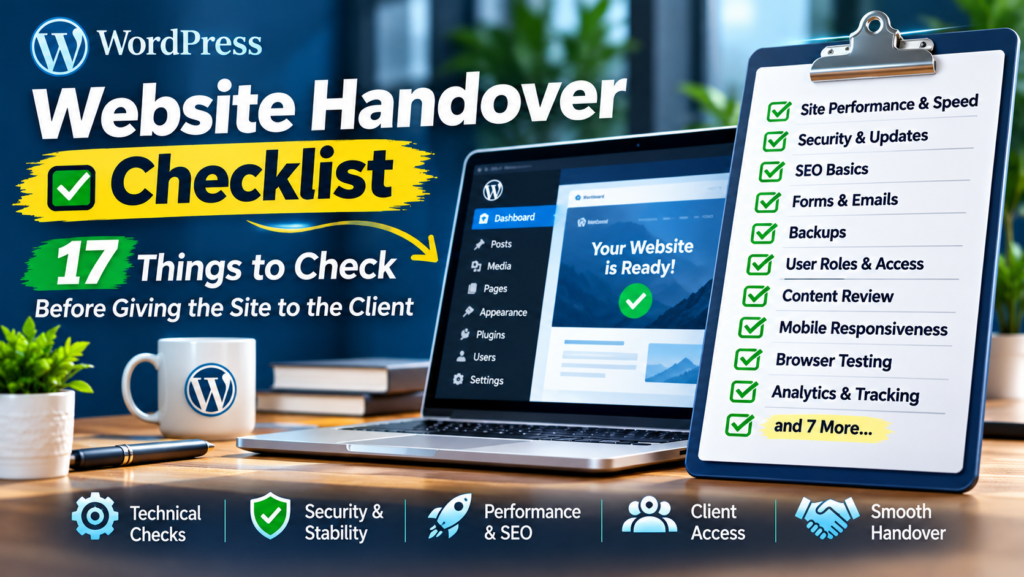
That is what this post is for: this WordPress handover checklist is the one we use before a WordPress site goes to a client. Seventeen things, in six simple sections. Go through them one by one, and do not skip a step because it “looks fine”. Handover is not the end of a project. It is the part the client remembers.
Content & Pages
1. Check every page for dummy text and spelling mistakes
Read the site like a visitor would, page by page. Look for “Lorem ipsum”, placeholder text, wrong dates, and spelling mistakes. A typo on the homepage is the first thing a client sees, and it is hard to forget.
2. Check all images and videos
Open every image. Is it the right one? Is it blurry? Does it load? Check that videos play and that no image is missing. A missing image on a live site looks unfinished.
3. Check all links, including the ones in the footer
Click every link: menu links, buttons, footer links, and links inside the text. A link that goes nowhere is one of the most common handover mistakes. Do not forget the social media links in the footer — they should go to the client’s real accounts, not to test accounts.
Design & Mobile
4. Check the site on a real phone
Do not only resize your browser window. Open the site on a real phone, and check the menu, the buttons, and the images. Is the text easy to read? Is anything cut off on the side? Most visitors will see the site on a phone first.
5. Check the site on a tablet and a small laptop
A layout that looks perfect on a large screen can break on a tablet. Check the homepage and the most important pages on at least one more screen size, and look for text that overlaps or images that are too big.
6. Check the header, footer and logo on every page
The logo, the menu and the footer should look the same on every page. Check that the logo is clear, the menu links are in the right order, and the footer has the client’s correct contact details.
Forms & Functionality
7. Submit every form yourself
Fill in the contact form, the quote form, and any other form on the site, and send it. Then check: does the email arrive? Does it go to the right inbox? Does the client get a thank-you message on screen? A form that looks fine but never sends is worse than no form at all.
8. Test the shop, the checkout and the payment
If the site is a WooCommerce store, place a test order. Add a product to the cart, go through the checkout, and check the payment step. Then check that the order email arrives and that the order shows up in the admin — before a real customer finds the problem.
9. Test search, filters and any special features
If the site has a search box, a filter, a booking form or a calculator, test each one. Search for a word that should give results, and one that should not. A feature that does not work will be the first thing a client tests.
Speed & Security
10. Check the site speed on mobile
Open the site on a phone, on normal mobile data if you can. If it takes too long to load, find out why — often it is one large image, or a plugin that is not needed. A slow site loses visitors, and the client will blame the build, not the hosting.
11. Check that the site has SSL and that the lock shows
The address bar should show the padlock and “https”. If the browser shows “Not Secure”, fix it before handover. Clients notice this, and so does Google.
12. Check the basics of security and backups
Make sure WordPress, the theme and the plugins are up to date. Check that a backup system is running and that you know how to restore it. For more on why this matters, see our guide on PHP web shells and the security lessons every PHP developer should know.
SEO Basics
13. Check the page titles and meta descriptions
Every page should have a clear title and a short description that says what the page is about. Check that no page is still called “Home” or “Untitled”, and that no two pages have the same title. This is a small job, but it is the first thing Google reads.
14. Check that the right pages are set to index
The main pages should be set to index, so Google can find them. But test pages, thank-you pages and staging copies should not be indexed. A quick look at the SEO settings for each page can save a lot of trouble later.
15. Check the sitemap and the 404 page
Open the sitemap and check that the main pages are listed. Then open a page that does not exist, and check that the 404 page looks right and links back to the homepage.
Admin & Handover Docs — Final WordPress Handover Checklist Steps
16. Give the client clean admin access and a short how-to
Create a login for the client, with the right role — usually an editor or an administrator, depending on what they need to do. Then write a short document: how to log in, how to edit a page, how to add a blog post, and who to call if something breaks. Keep it to one or two pages. A long manual will never be read.
17. Hand over the keys, and agree who looks after the site next
List everything the client now owns: the domain, the hosting login, the WordPress login, and any paid plugins or licences. Then agree, in writing, what happens next — who updates the site, who takes backups, and who fixes it if it goes down. If the answer is your agency, put it in a simple monthly support plan. On our side, monthly support starts from $1,500/mo, and project-based work starts from $2,000+. See our Services and Pricing pages for the full details.
FAQs
What is a WordPress handover checklist? It is a list of checks you run before giving a finished WordPress site to a client. It covers content, design, forms, speed, security, SEO and admin access, so that nothing important is missed in the last hour of a project.
When should the handover checklist be used? Use it before the site goes live, not after. Run through it on the staging site first, fix what you find, and then run it once more on the live site. The second run is much quicker, and it catches the things that only show up after launch.
Who should do the handover checks — the developer or the agency? Both, if you can. The developer checks the build, and someone else from the agency checks it like a client would. A fresh pair of eyes always finds something the builder missed. If you work with a white-label partner, agree in advance who runs the final check — our full white-label workflow is explained in our guide to white-label WordPress development for agencies.
How long does a proper handover take? For a normal business site, about one hour for the checks, plus time to fix what you find. A shop or a site with custom features takes longer. Do not rush it — one hour now is much cheaper than a week of fixes after launch.
A good WordPress handover checklist is not about being perfect. It is about being careful. Seventeen small checks, done in the right order, are what separate a site that feels finished from a site that feels rushed. Save this checklist, use it on your next project, and keep it next to your desk — the best checklists are the ones you actually use.
If your agency has more projects than your team can handle, and you want handover to be done properly every time, let us talk. Send your project on Discuss a Partnership, and we will talk clearly about scope, timeline and pricing.
And tell us in the comments: what is the one thing you always check before handing a site to a client — and what is the one thing you once forgot?
Ideas For Your Next Build
Explore guides, technical tips and fresh perspectives for your WordPress projects.


White-Label
Nov, 2026
White-Label WordPress Development: A Complete Guide for Agencies
LET'S GROW TOGETHER
Ready to deliver more without building a bigger in-house team?
Whether you need support for one project or an ongoing delivery partner, let’s discuss how our team can work quietly behind your agency.